> For the complete documentation index, see [llms.txt](https://docs.scribeware.com/llms.txt). Markdown versions of documentation pages are available by appending `.md` to page URLs; this page is available as [Markdown](https://docs.scribeware.com/getting-started/the-desktop-calendar.md).

# The Desktop Calendar

The desktop home screen can show your upcoming work as a **calendar** instead of the report list. The calendar shows every scheduled inspection for your team, plus lightweight **services** (jobs with no report, like a radon monitor drop-off) and **block time** (periods when an inspector is unavailable).

<figure><img src="/files/Bklywr5aBpfcyntNzMlO" alt="Cycling through the list, month, week and day views"><figcaption><p>The four home screen views: list, month, week and day</p></figcaption></figure>

## Switching Views

The four buttons on the left side of the home screen toolbar switch between:

* **List** — the classic report list
* **Month** — a month-at-a-glance grid
* **Week** — a seven-day time grid
* **Day** — a single day with a column for each inspector

Next to the view buttons you'll find **back / forward arrows**, a **Today** button, and the current date range. Switching views is instant and nothing is lost when you toggle back to the list.

### Month View

<figure><img src="/files/fgb9Kkzy6PhvoU6ZUy7A" alt="Month view showing inspections, a service and block time"><figcaption><p>Month view — inspections, a service, and block time across a week</p></figcaption></figure>

Each inspection shows its address, time, client name, and a colored chip with the assigned inspector's initials. The icons along the right edge of an event give you appointment status at a glance: a green check when the appointment is confirmed, a **$** until the invoice is paid, and a send arrow until the report is published. The red badge is the report's outstanding review-item count.

### Week View

<figure><img src="/files/Xngctd4yanYhf0ZZFESU" alt="Week view with events laid out on a time grid"><figcaption><p>Week view — events sized by duration on a time grid</p></figcaption></figure>

Events are sized by their duration — an inspection's length comes from the **Duration (hours)** field in the report's Inspection Details. A red line marks the current time.

### Day View

<figure><img src="/files/5ux0RKVQv2rrohArnuSL" alt="Day view with one column per inspector"><figcaption><p>Day view — one column per inspector, plus an Unassigned column</p></figcaption></figure>

The day view gives each inspector their own column, so a multi-inspector company can see who is where for the day. Reports with no assigned inspector appear in the **Unassigned** column.

## Scheduling From the Calendar

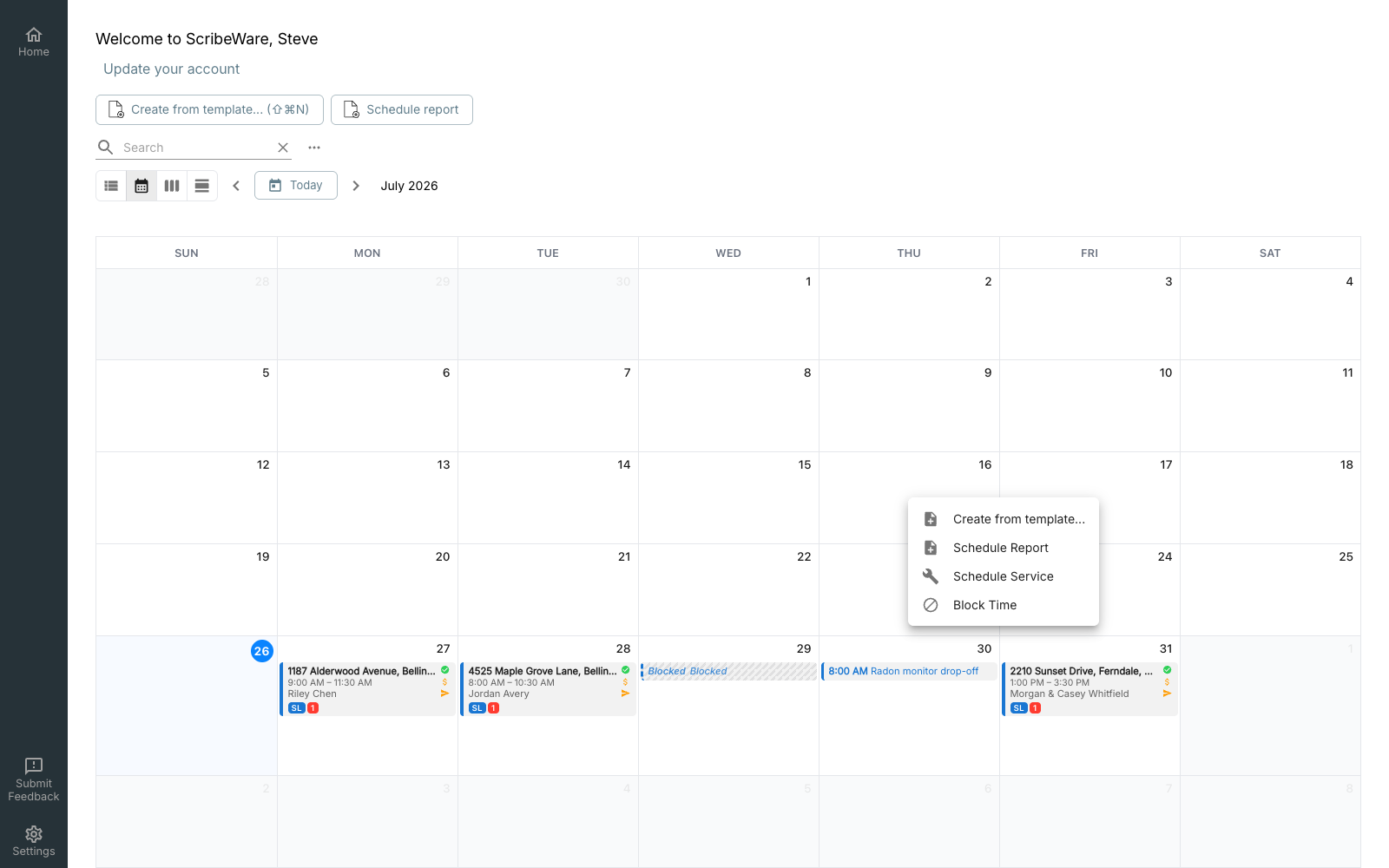
Click any empty day or time slot to open the scheduling menu:

<figure><img src="/files/lc2MXzstiPVwS9J4dF2G" alt="Scheduling menu on an empty calendar slot"><figcaption><p>Click an empty slot to schedule right where you clicked</p></figcaption></figure>

* **Create from template…** / **Schedule Report** — starts a new report with the inspection date and time pre-filled from the slot you clicked. In month view the time defaults to 8:00 am; in week and day views the report starts at the time you clicked.
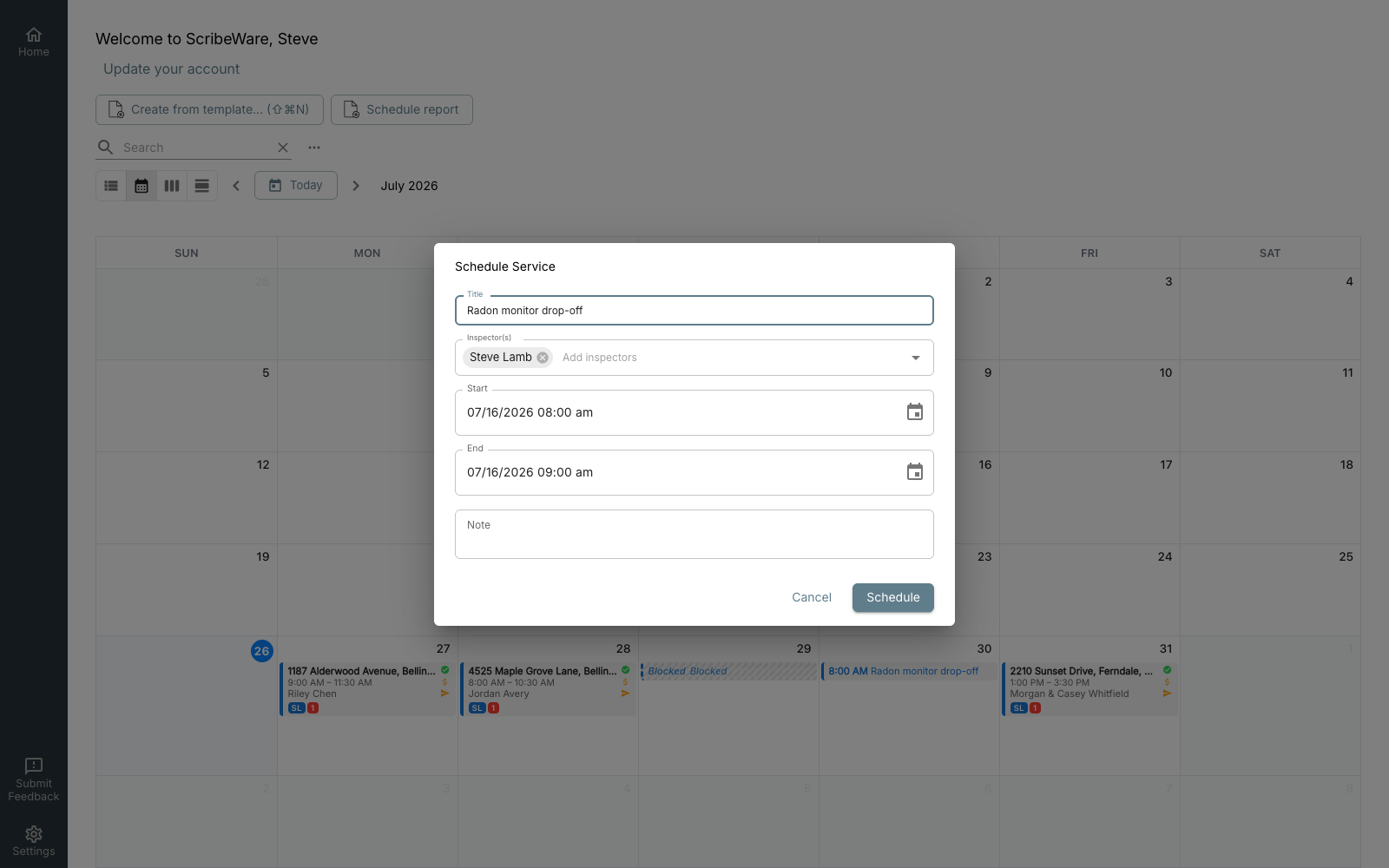
* **Schedule Service** — creates a lightweight calendar item for work that doesn't need a report: a verbal consult, a radon drop-off, a re-key, anything. Give it a title, one or more inspectors, a time range and an optional note.
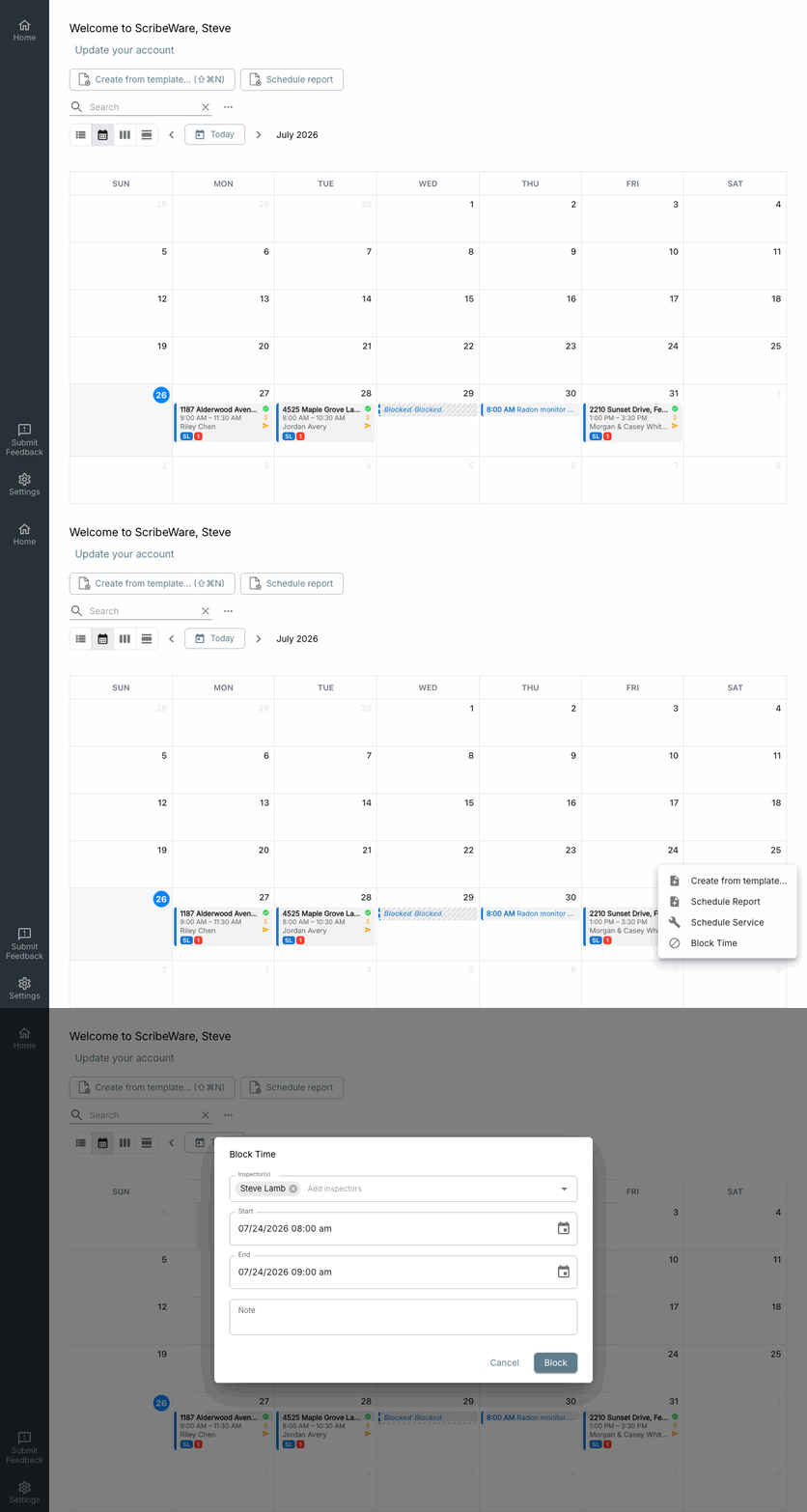
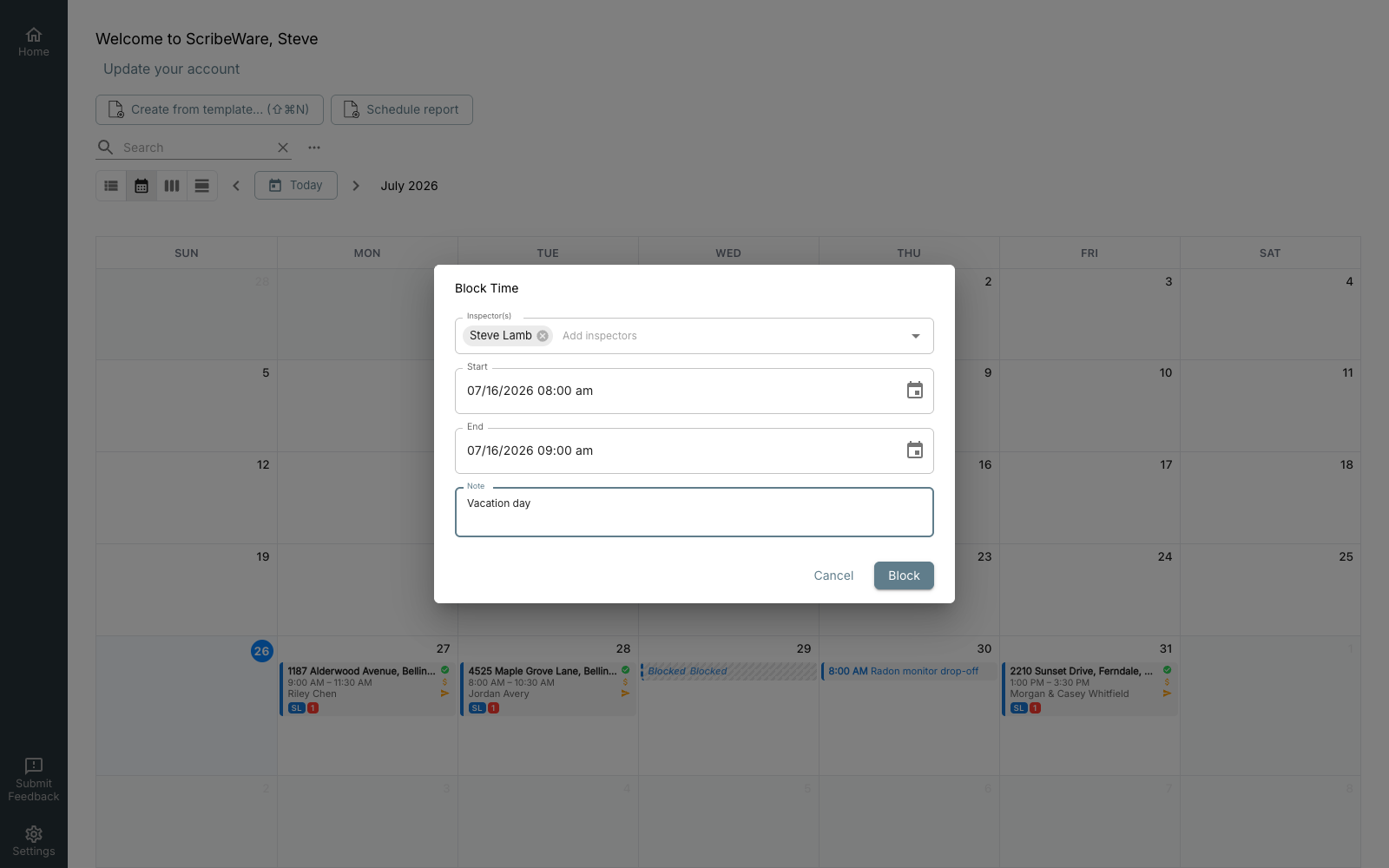
* **Block Time** — marks an inspector as unavailable. Blocked time renders as a striped hatch on the calendar.

<figure><img src="/files/54kyJBpr6fcLGeRk0kVe" alt="Opening the scheduling menu and the Block Time dialog"><figcaption><p>Blocking out time from the calendar</p></figcaption></figure>

<figure><img src="/files/YXN7LdSjLAVezZkdig9G" alt="The Schedule Service dialog"><figcaption><p>Scheduling a service — no report attached</p></figcaption></figure>

<figure><img src="/files/9f8B2niAtXBCgVas5HAL" alt="The Block Time dialog"><figcaption><p>Blocking time for vacation, appointments, or anything else</p></figcaption></figure>

{% hint style="info" %}
A newly scheduled report appears on the calendar once its appointment is **confirmed** — use the **Confirm appointment** button at the top of the report. You can confirm with or without sending the client a confirmation email.
{% endhint %}

## Working With Events

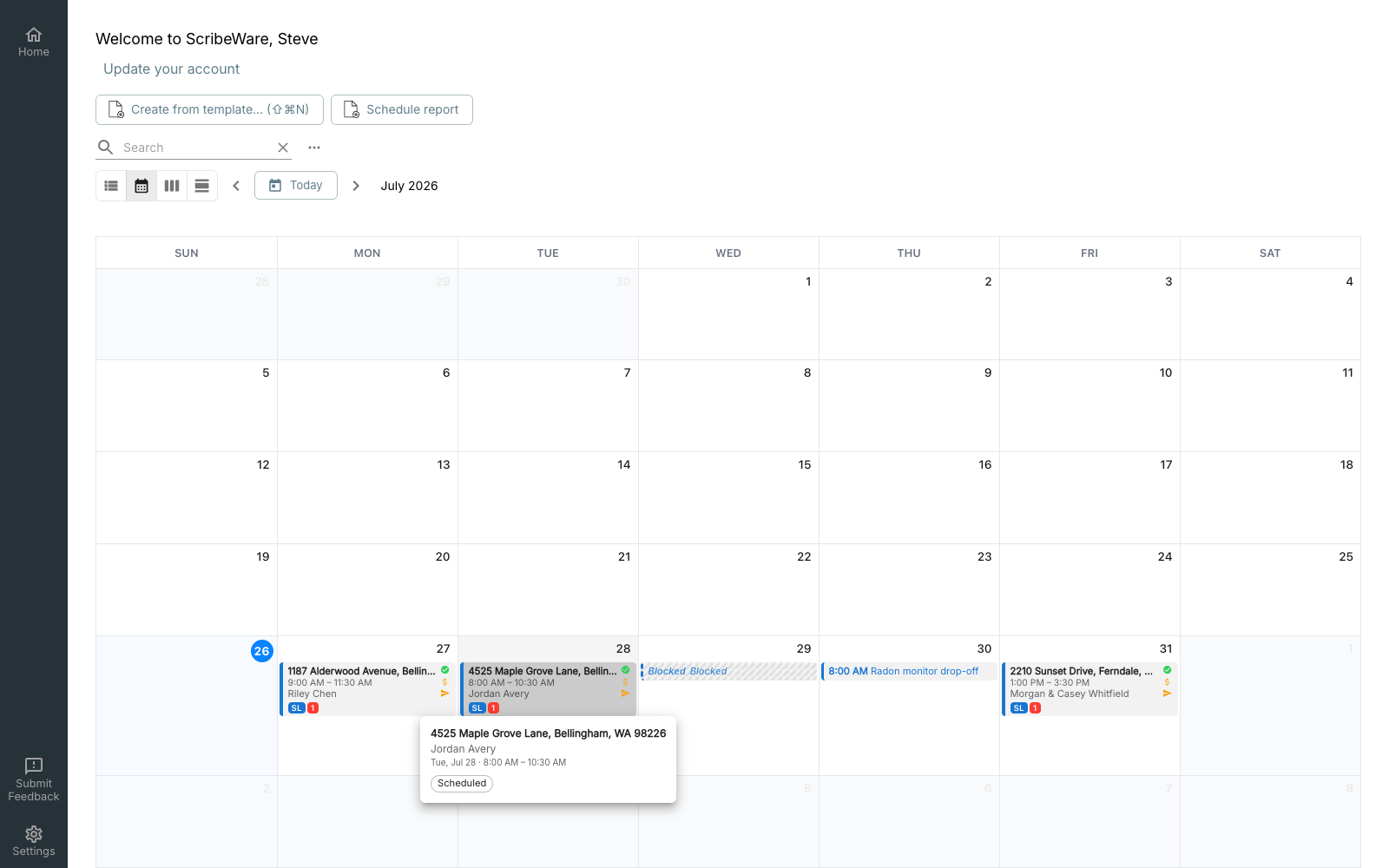
* **Hover** over any event for a quick summary — address, client, time, and status — without opening anything.
* **Click** an inspection to jump straight into its report.
* **Click** a service or block time to edit it. The edit dialog also has a **Delete** button when you need to remove one.

<figure><img src="/files/CZSh8RMyLn2AbTLwZd5g" alt="Hover popover showing event details"><figcaption><p>Hovering an event shows the details without leaving the calendar</p></figcaption></figure>

## Inspector Colors

Every event is tinted with its inspector's calendar color, so a full week stays readable for multi-inspector teams. Assign each team member a color in **Settings → Team** with the **Calendar Color** picker.

<figure><img src="/files/ZcL9BUkW1CBJlHIK1xnq" alt="Calendar Color picker in Settings, Team"><figcaption><p>Pick a calendar color for each team member in Settings → Team</p></figcaption></figure>

{% hint style="info" %}
Services and block time can be assigned to **multiple inspectors** — handy for team meetings or trainings that take everyone off the schedule at once.
{% endhint %}

## Events from Google Calendar

If you've connected your Google Calendar, your own appointments appear on this calendar too — greyed out and read-only, sitting alongside your inspections so you can see the whole day in one place.

They can't be clicked into or edited from ScribeWare; Google owns them. And they're only as visible as they need to be: you see your own event titles, while teammates see just **Busy**.

{% content-ref url="/pages/kVc7j4HDWm8meKIYeTmq" %}
[Google Calendar](/scheduling-services-and-payments/scheduling-services-and-payments/google-calendar.md)
{% endcontent-ref %}


---

# Agent Instructions
This documentation is published with GitBook. GitBook is the documentation platform designed so that both humans and AI agents can read, navigate, and reason over technical content effectively. Learn more at gitbook.com.

## Querying This Documentation
If you need additional information that is not directly available in this page, you can query the documentation dynamically by asking a question.

Perform an HTTP GET request on the current page URL with the `ask` query parameter, and the optional `goal` query parameter:

```
GET https://docs.scribeware.com/getting-started/the-desktop-calendar.md?ask=<question>&goal=<endgoal>
```

`ask` is the immediate question: it should be specific, self-contained, and written in natural language.
`goal` is optional and describes the broader end goal you are ultimately trying to accomplish on behalf of the user. GitBook uses it to tailor the answer towards what is most useful for that goal.

The response will contain a direct answer to the question and relevant excerpts and sources from the documentation.

Use this mechanism when the answer is not explicitly present in the current page, you need clarification or additional context, or you want to retrieve related documentation sections.